Multi-Factor Authentication (MFA)
Signing into Office 365 with 2FA (Two Factor Authentiation)
Signing In with your Phone
- Go to https://portal.office.com
- You'll see a sign in page that looks like this
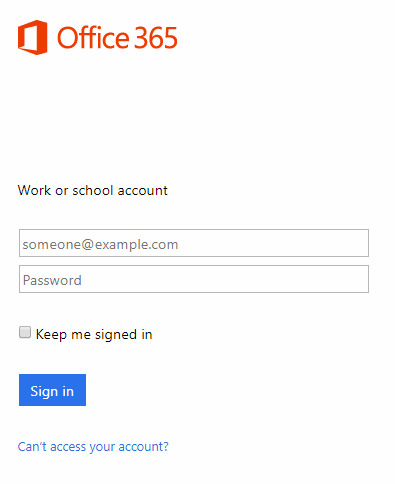
- or like this
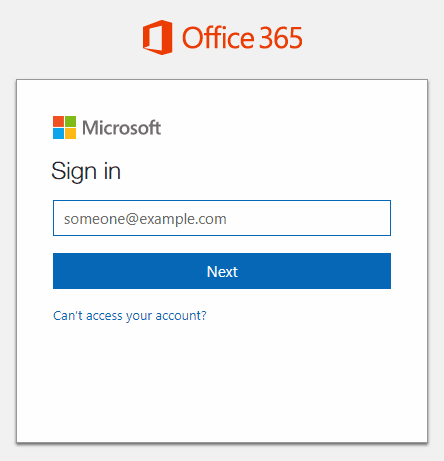
- Enter your email address and password and continue to the next page.
- You'll see a message like this
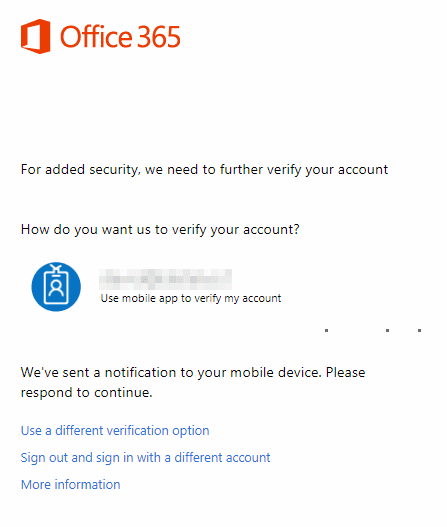
- At this point, look at your mobile phone and hit Accept on the prompt that comes up from the Microsoft Authenticator app.
- That should be it, enjoy!
Other Sign In Methods
If you're in a plane, canyon, Mars, or some other place where your phone doesn't get cell service, then the sign in experience is a little different.
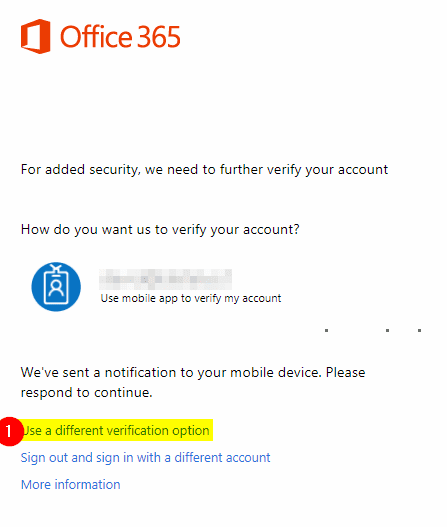
- On the last step, where it says that it sent a notification to your device, click on the link for "Use a different verification option"
- Click on "Use verification code from my mobile app"
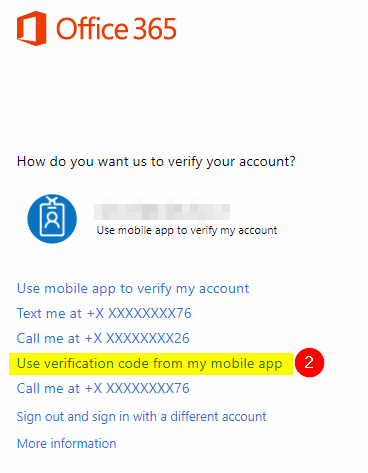
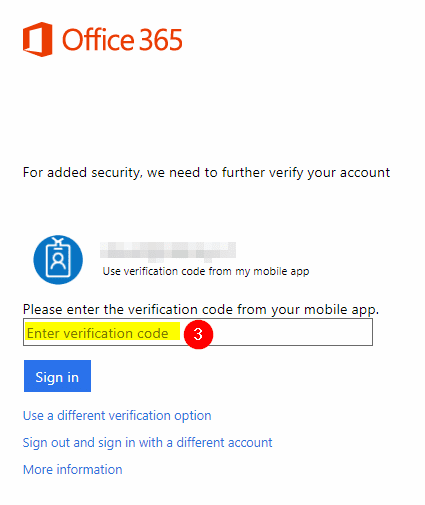
- On your phone, open the Microsoft Authenticator app and find a 6 digit numerical code listed under your email address. Enter that code in the box provided